> For the complete documentation index, see [llms.txt](https://user-guide.lifeform.cc/llms.txt). Markdown versions of documentation pages are available by appending `.md` to page URLs; this page is available as [Markdown](https://user-guide.lifeform.cc/lifeform-cartoon-user-guide.md).

# Lifeform Cartoon User Guide

Applicable system & download methods:

iOS:

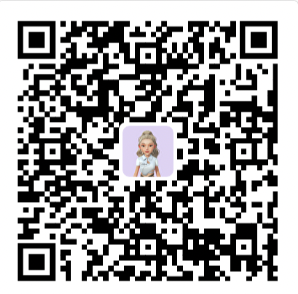
Scan the QR code below to download.

<figure><img src="https://miro.medium.com/max/624/1*mItDxjHu_XcwKH0dvn9L1A.jpeg" alt=""><figcaption></figcaption></figure>

Steps:

1. Please use the system camera to scan the QR code
2. Click TestFlight to enter.
3. Click Continue.
4. Click Agree.
5. Click Accept.
6. Click Install.
7. Click Next.
8. Click Start Testing.
9. Go to [Google Play](https://play.google.com/store/apps/details?id=com.houlangtech.lifeform\&pli=1) to download.
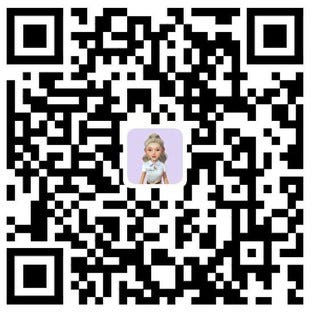
10. Scan the QR code below to download.![](/files/3zO5jdb6R5SSuiRW17OS)
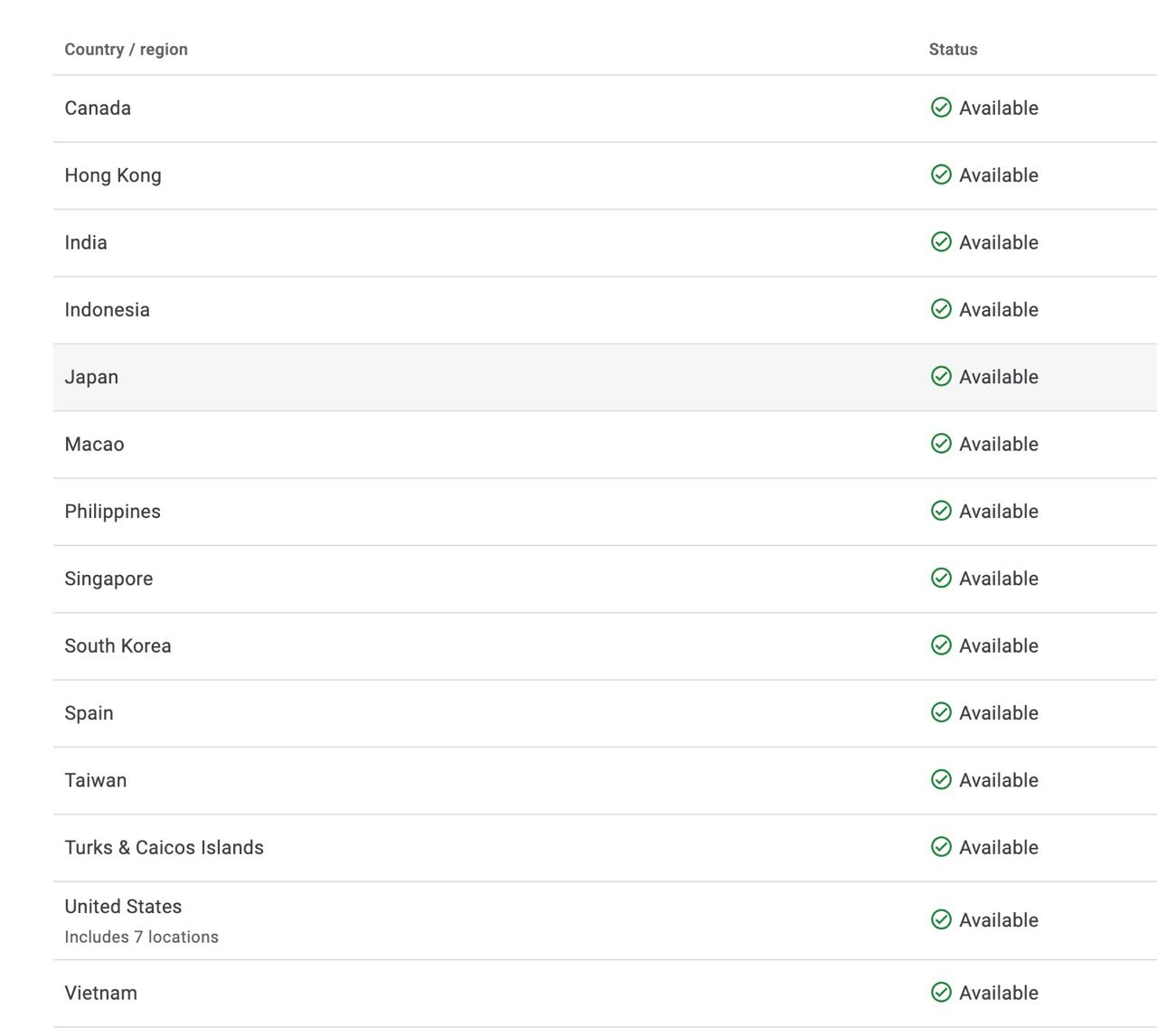
11. If you get regional restrictions, please head over to our [website](https://lifeform.cc/) to download the offline APK. <https://s3.ap-southeast-1.amazonaws.com/cdn-sgp.lifeform.cc/cartoon/LifeForm-release-V1.2.1.apk>

Android:

1. Go to [Google Play](https://play.google.com/store/apps/details?id=com.houlangtech.lifeform\&pli=1) to download.
2. Scan the QR code below to download.

<figure><img src="https://miro.medium.com/max/596/1*GnAU-tolqnemKaLKGDZKvw.png" alt=""><figcaption></figcaption></figure>

If you get regional restrictions, please head over to our [website](https://lifeform.cc/) to download the offline APK. here is the link <https://s3.ap-southeast-1.amazonaws.com/cdn-sgp.lifeform.cc/cartoon/LifeForm-release-V1.2.1.apk>

<figure><img src="https://miro.medium.com/max/1400/1*EvBMs6pV83_Q3VmO5BHwdQ.png" alt=""><figcaption></figcaption></figure>

**Please try switching network nodes in different regions if it takes a long time to load.**

**Create Lifeform Cartoon Avatar**

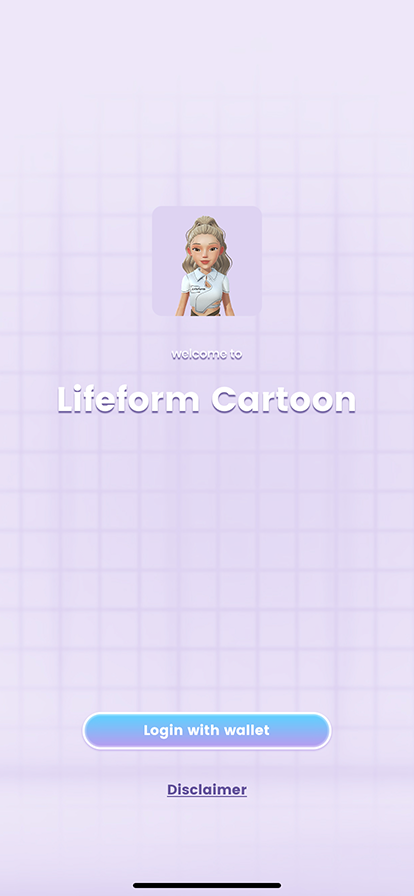
1. Open the APP, and click ‘Login with wallet’.

<figure><img src="https://miro.medium.com/max/828/1*Wpmtopqku_jFjxr3bto8JQ.png" alt=""><figcaption></figcaption></figure>

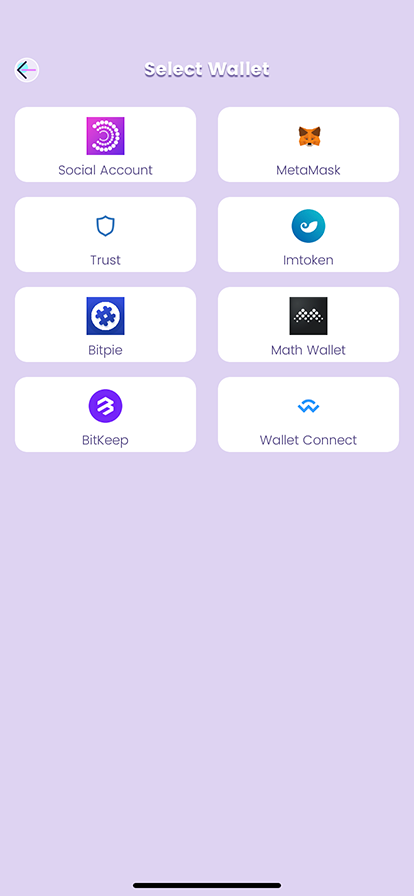
2\. Choose the wallet you use, if you don’t have a wallet, you can choose the ‘Social Account’ to register a wallet by your email address or phone number.

<figure><img src="https://miro.medium.com/max/828/1*ixg1VSHvQ0cbj8m7DhyYjw.png" alt=""><figcaption></figcaption></figure>

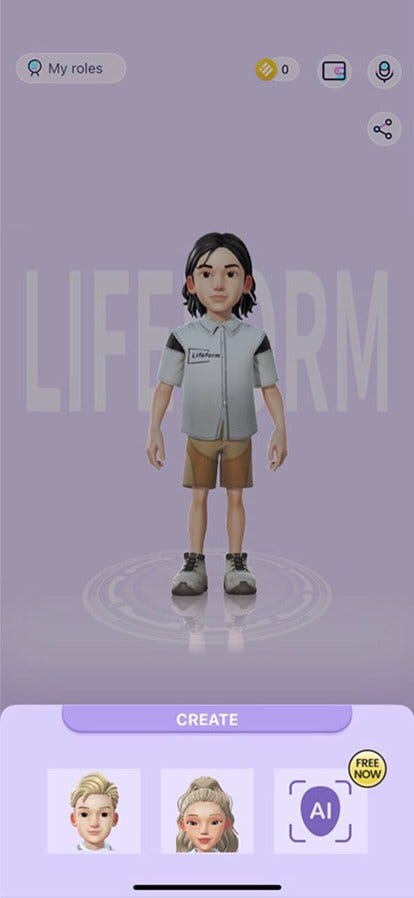
3\. Click ‘CREATE’ on the main page to create a new Avatar.

<figure><img src="https://miro.medium.com/max/794/1*1vlfQtVR7em2b2Kz19rCXQ.png" alt=""><figcaption></figcaption></figure>

4\. Choose the gender of your Avatar. Or you can get an Avatar generated by the AI function, what you need to do is take a selfie or upload a picture. (It’s free for a limited time)

<figure><img src="https://miro.medium.com/max/828/1*nk5Ndo_V2SPPP2Ic5g0MBg.jpeg" alt=""><figcaption></figcaption></figure>

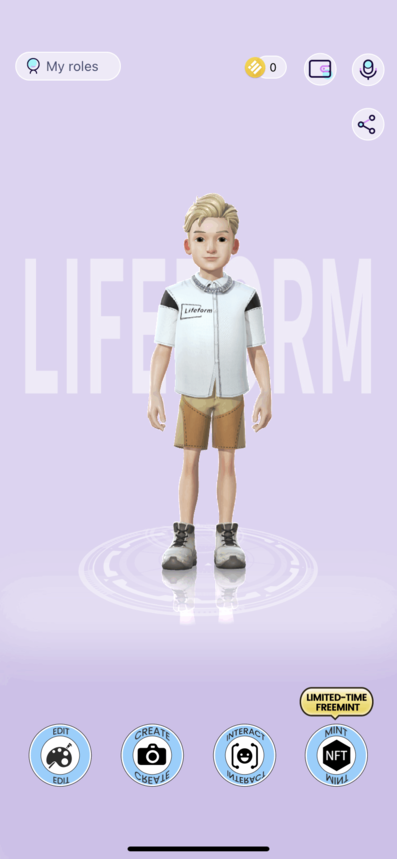
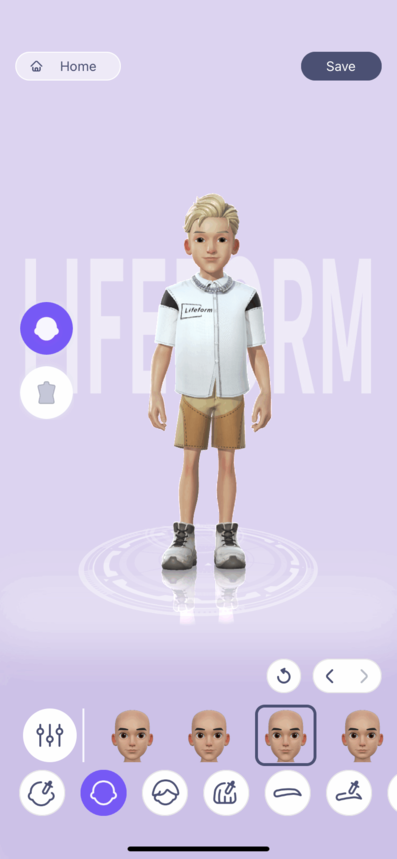
5\. Click ‘EDIT’ on the main page to edit your Avatar.

<figure><img src="https://miro.medium.com/max/794/1*8HV5_xYdBtq1ciXTWoAxQA.png" alt=""><figcaption></figcaption></figure>

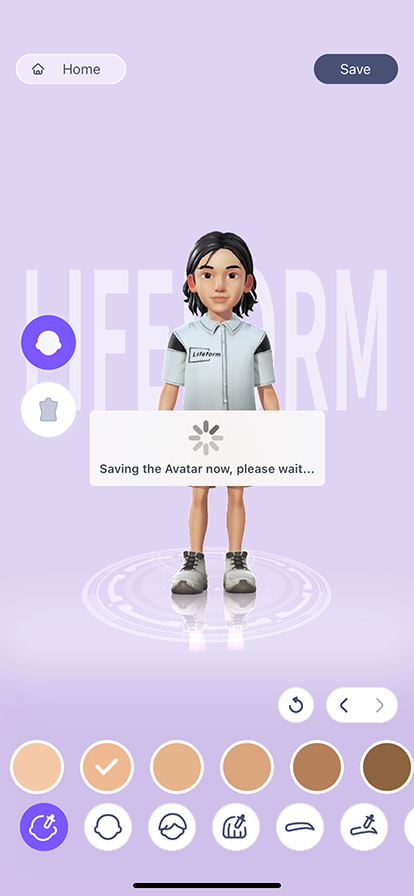
6\. Click ‘Save’ to save your Avatar when you have done the edit.

<figure><img src="https://miro.medium.com/max/828/1*CHbiSDzSpJbxTA6mGFvXJw.png" alt=""><figcaption></figcaption></figure>

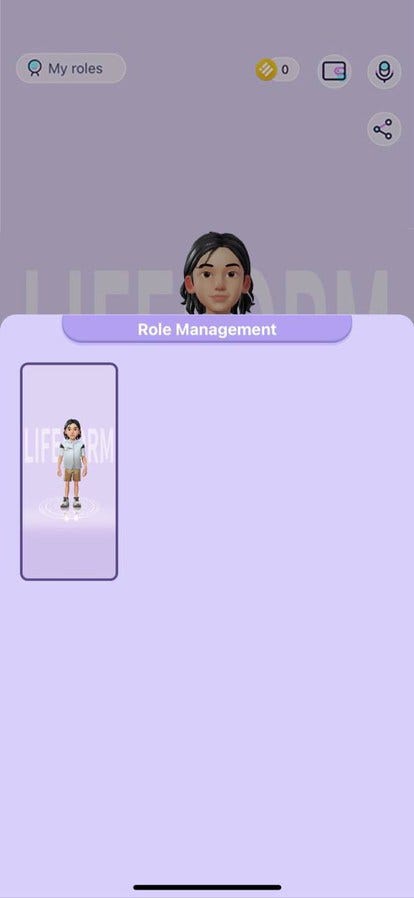
7\. Click ‘My roles’ at the upper left to check the Avatars created for you.

<figure><img src="https://miro.medium.com/max/828/1*X9VfLf8LSXVXXGIGcIy1eA.jpeg" alt=""><figcaption></figcaption></figure>

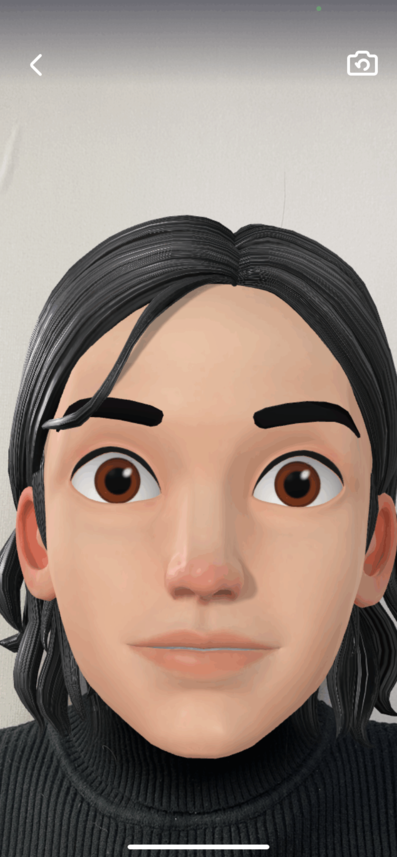
8\. Click ‘INTERACT’ on the main page to experience the face capture function.

<figure><img src="https://miro.medium.com/max/794/1*c98A1g2Vepl9ML9FTaPD7A.png" alt=""><figcaption></figcaption></figure>

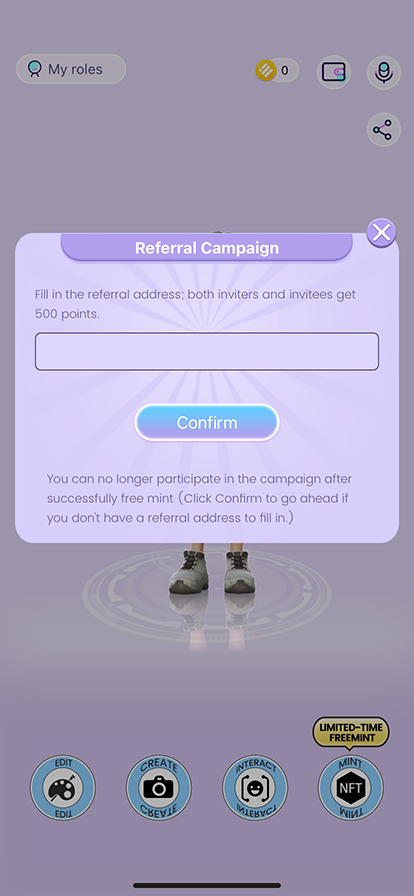
9\. Click ‘MINT’ on the main page. New users can free mint a Cartoon Avatar once in a limited time. You can input the wallet address of the inviter, and both the inviter and the invitee can get 500 Lifeform points. Click ‘Confirm’ to go ahead if you don’t have a referral address to fill in.

<figure><img src="https://miro.medium.com/max/828/1*fgwbOJlxtZzXhmzOtRREgA.png" alt=""><figcaption></figcaption></figure>

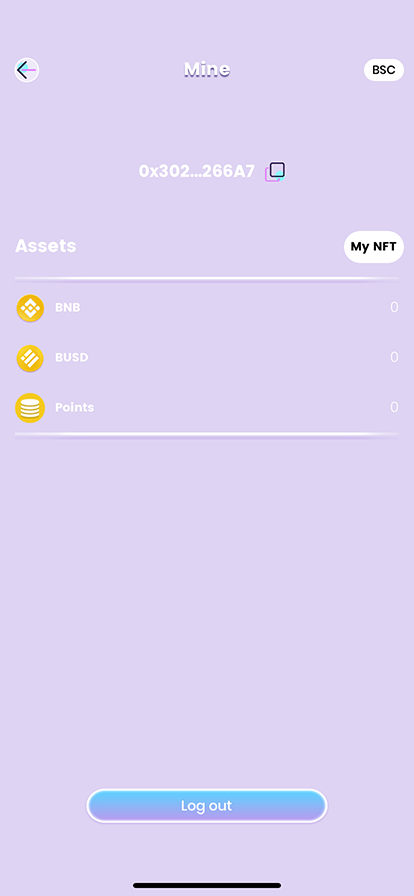
10\. You can check your account information by clicking the wallet button at the upper right of the main page.

<figure><img src="https://miro.medium.com/max/828/1*F-uNxaghm3UL_8hVbyEvuQ.png" alt=""><figcaption></figcaption></figure>

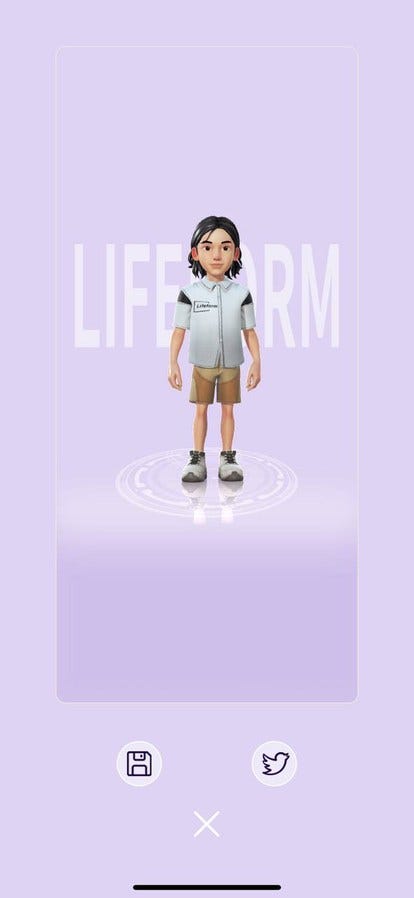
The share button saves the Avatar into photos or shares it through Twitter.

<figure><img src="https://miro.medium.com/max/828/1*1xDP4JC-6-4V5F1MYqBehQ.jpeg" alt=""><figcaption></figcaption></figure>

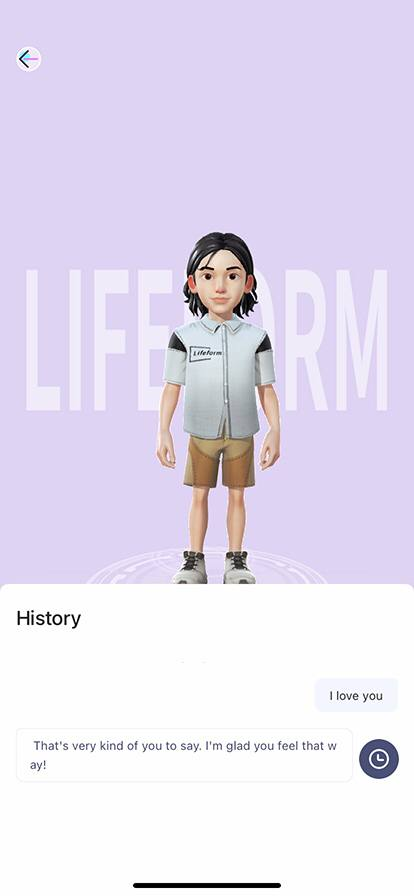
The chat button leads you to the page to AI chat with Avatar. You just need to enter the text in the dialogue box.

<figure><img src="https://miro.medium.com/max/828/1*iZik_UCWYTO_0gVmCJt8oA.png" alt=""><figcaption></figcaption></figure>

Download NOW to start your journey on Lifeform Cartoon!

---

# Agent Instructions
This documentation is published with GitBook. GitBook is the documentation platform designed so that both humans and AI agents can read, navigate, and reason over technical content effectively. Learn more at gitbook.com.

## Querying This Documentation
If you need additional information that is not directly available in this page, you can query the documentation dynamically by asking a question.

Perform an HTTP GET request on the current page URL with the `ask` query parameter:

```
GET https://user-guide.lifeform.cc/lifeform-cartoon-user-guide.md?ask=<question>
```

The question should be specific, self-contained, and written in natural language.
The response will contain a direct answer to the question and relevant excerpts and sources from the documentation.

Use this mechanism when the answer is not explicitly present in the current page, you need clarification or additional context, or you want to retrieve related documentation sections.